Table of Contents
DOCSTOOLS: RECORDING A WORK ITEM - SNAGIT
Tools: Recording a Work Item - Snagit
Here's how you can set up Snagit to get your videos processed by YakShaver!
⚠️ Important: Turn off YakShaver before you begin
- Open YakShaver in Microsoft Teams
- Type OFF in the YakShaver Teams bot
(Snagit will copy all the existing files to the new location, this prevents processing of old videos during setup)
Set up your Library
- Open Snagit Editor
- In the toolbar, select Edit | Editor Preferences
- Open the Library tab, and change the library location to your OneDrive Recordings' folder. i.e.
OneDrive/Recordings/Snagit/
📁 Tip: See OneDrive Folder Structure for more information about organizing your recordings. - Change the library location to your OneDrive Recordings' folder. i.e.
OneDrive/Recordings/Snagit/
Note: This moves all your files and folders to the new location. Backup or remove anything you don’t want shared. - Click OK, which will prompt you to restart Snagit
- After configuring Snagit and OneDrive files have been fully synced, type ON in YakShaver to reactivate processing
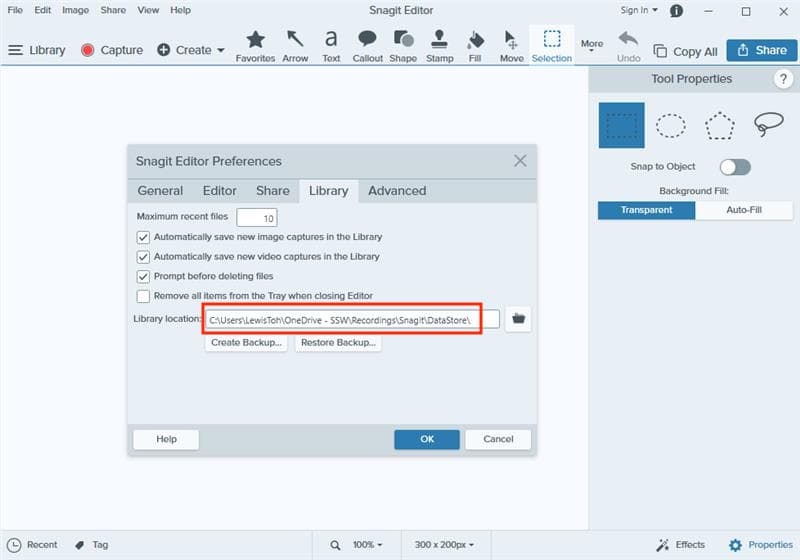
Figure: Change Library location folder in your OneDrive
Recording a video with Snagit
- In Snagit, ensure that "All-in-one" is selected
- Click the Capture button or your capture hotkey (we recommend using “Print Screen”)
- When done, stop the recording and wait for YakShaver to process the video
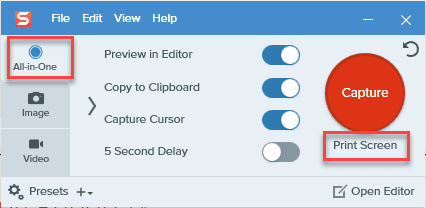 Figure: Ensure "All-in-one" is selected
Last updated: 18 November 2024